A weekly plan gives you and your child a routine. You pick a goal topic, Kākā Math lays out the lessons to get there, and each week has the same rhythm: two lessons together, a short set of questions most days, and a check at the weekend before you decide what comes next.
It works the same on iPhone, iPad and Android. Plans are set up and followed in the apps. The only part on the web is the prep page that comes in the email.
What a plan looks like
- A goal topic. The topic you want your child to reach, in any year level.
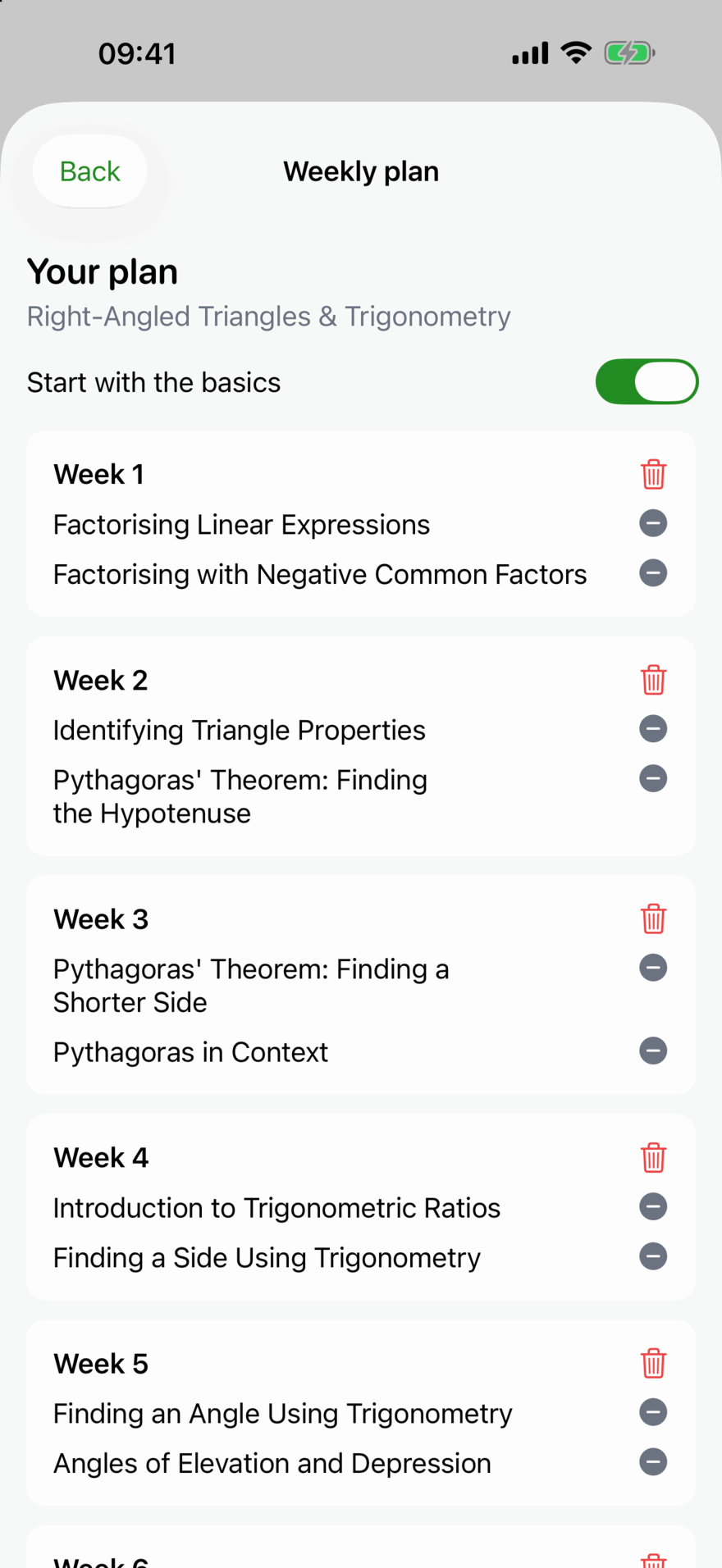
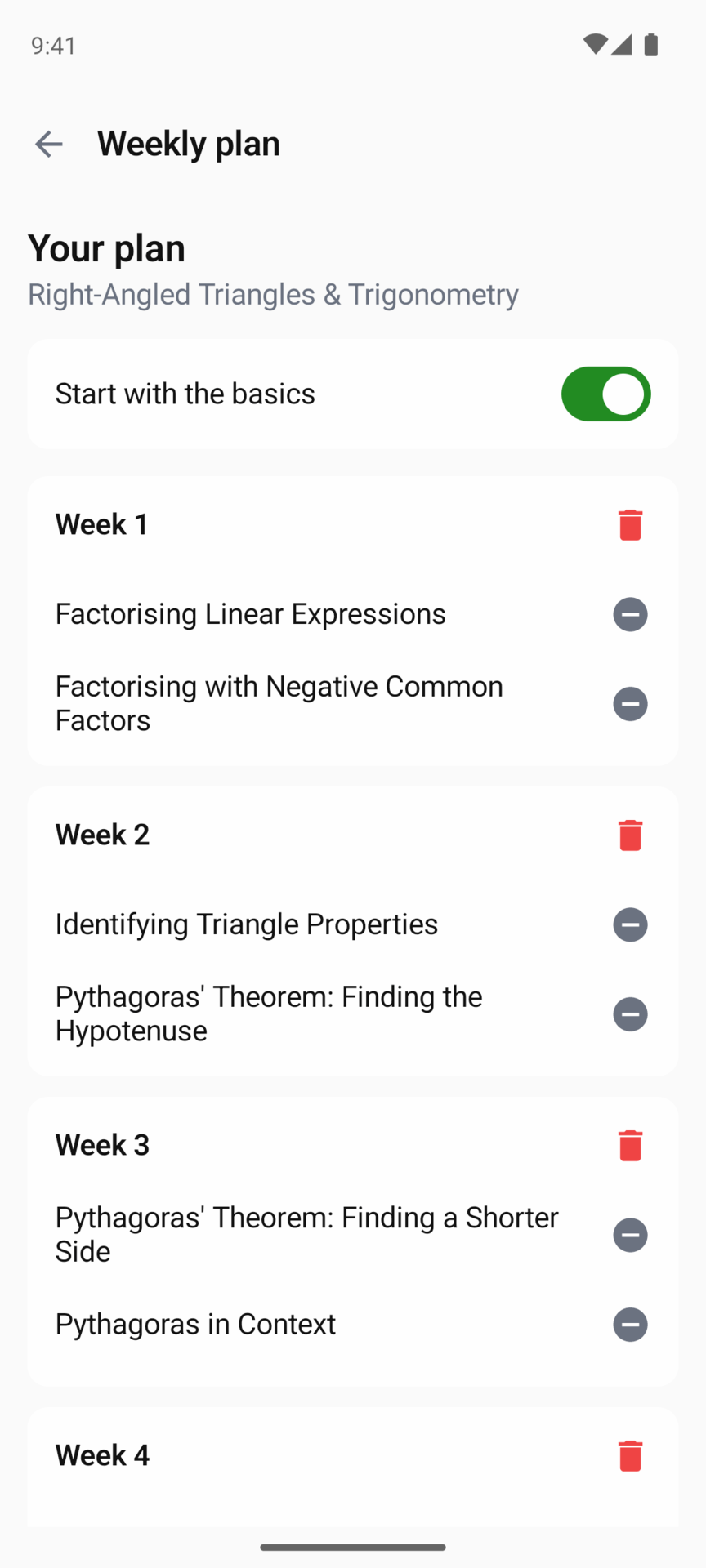
- Lessons, not whole topics. The plan is a list of lessons, two a week. You can remove lessons or whole weeks before you start. If you start with the basics, the first weeks cover the earlier topics the goal depends on, then the goal topic itself. Lessons your child has already completed are left out.
- A session day. One day a week, Saturday unless you choose another, when you sit down together. The week runs from one session day to the next.
- A first session. The next session day unless you choose another day, up to four weeks ahead.
- Today’s practice. On the other six days, a fixed set of questions from the lessons your child has started this week, with a few from earlier weeks mixed in. The aim is five days out of the six.
A child can have one plan at a time.
Setting one up
- Open your child’s page and find the Weekly plan section. With no plan it reads “Pick a topic. Kākā Math sets two lessons a week to do together, then a few questions a day in between.”
- Tap Start a weekly plan.
- What are you working on? Type in Search any topic, in any year. Results show a year chip, and the search also looks inside lesson titles. Choose the topic.
- Your plan. The suggested weeks, with their lessons. Turn Start with the basics off if your child already has the earlier topics, and the plan is suggested again. Remove a lesson, or a whole week, you don’t want.
- When do you meet? Choose the weekday for your sessions, and when to begin under First session: Next Saturday (or your day), Today, or Choose a day. Set Questions a day between 4 and 10, with a note such as “About 10 minutes” under it. Six questions is the starting point.
- Optionally turn on Learn alongside (see below), then tap Start plan.
Week 1 begins on your first session. Until then your child’s page says “First session: Saturday” (or your day), and there is no practice.
Starting on a different day
Your session day stays your session day, whichever day you start. If you start on a Tuesday and meet on Saturdays, you do week 1’s lessons on Tuesday, your child practises until Friday, and the first weekend check is on Saturday. From there each week runs Saturday to Saturday. A short week has a lower practice target, so “Practised 3 of 3 days” is a full week.
If the session day is less than three days after your start, week 1 runs on to the session day after. Set-up tells you when: “Week 1 runs until Saturday 14 November, then you meet every Saturday.”
The date can’t be changed once the plan is saved. To change it, use End plan and set the plan up again.
Setting one up by chatting
If you know what your child needs but not which topic it is, or the plan needs to fit something specific such as a worksheet or a test, let Kākā draft it.
- On What are you working on?, tap Talk it through with Kākā.
- Answer in your own words, or tap one of the suggested answers. Kākā asks what your child is working towards, what they are finding hard, how long the plan should run and when to start.
- When Kākā has a plan, it shows why the plan runs in that order, with how many weeks and lessons it has. Ask for changes in the chat, such as “make it two weeks” or “leave out the similar triangles”.
- Tap Review this plan. You get the usual Your plan and When do you meet? steps, filled in. Remove anything you don’t want, and use Back to return to the chat. Start with the basics isn’t there, because the chat has already chosen what comes first.
- Tap Start plan. Nothing is set up until you do.
Kākā builds the plan only from lessons in Kākā Math, and looks at your child’s recent lessons, practice, check-ins and Cheeky Checks. It says so when it has seen recent Cheeky Checks. Cheeky Check’s marking can be wrong, especially on questions with a diagram, so Kākā uses it as a clue about where to look and not as a verdict. You can’t attach a photo in the chat, but anything already in Cheeky Check counts, and you can describe a worksheet in words.
A family can have 5 planning chats a day and 30 a month, shared between its parents. A chat counts once you have sent your first message, and each can run to 20 messages. If you reach a limit you can still search for a topic yourself. Chats are deleted after about a month. See the privacy policy for what is sent to our AI providers.
A child with a plan can’t start a planning chat. Use End plan first, and then their progress stays and you can start again.


The weekly rhythm
The evening before the session, you get an email with how the week went and a link to prepare the next lessons. See The Friday email and the prep page.
On the session day your child does the weekend check, then you do the new lessons together. The This week card on your child’s Nest shows “Session day” with the two steps in order: “1. Weekend check” and “2. This week’s lessons”. Each lesson is a row that opens it, ticked once complete. On the first session day there is nothing to check yet, so it shows only “This week’s lessons”.
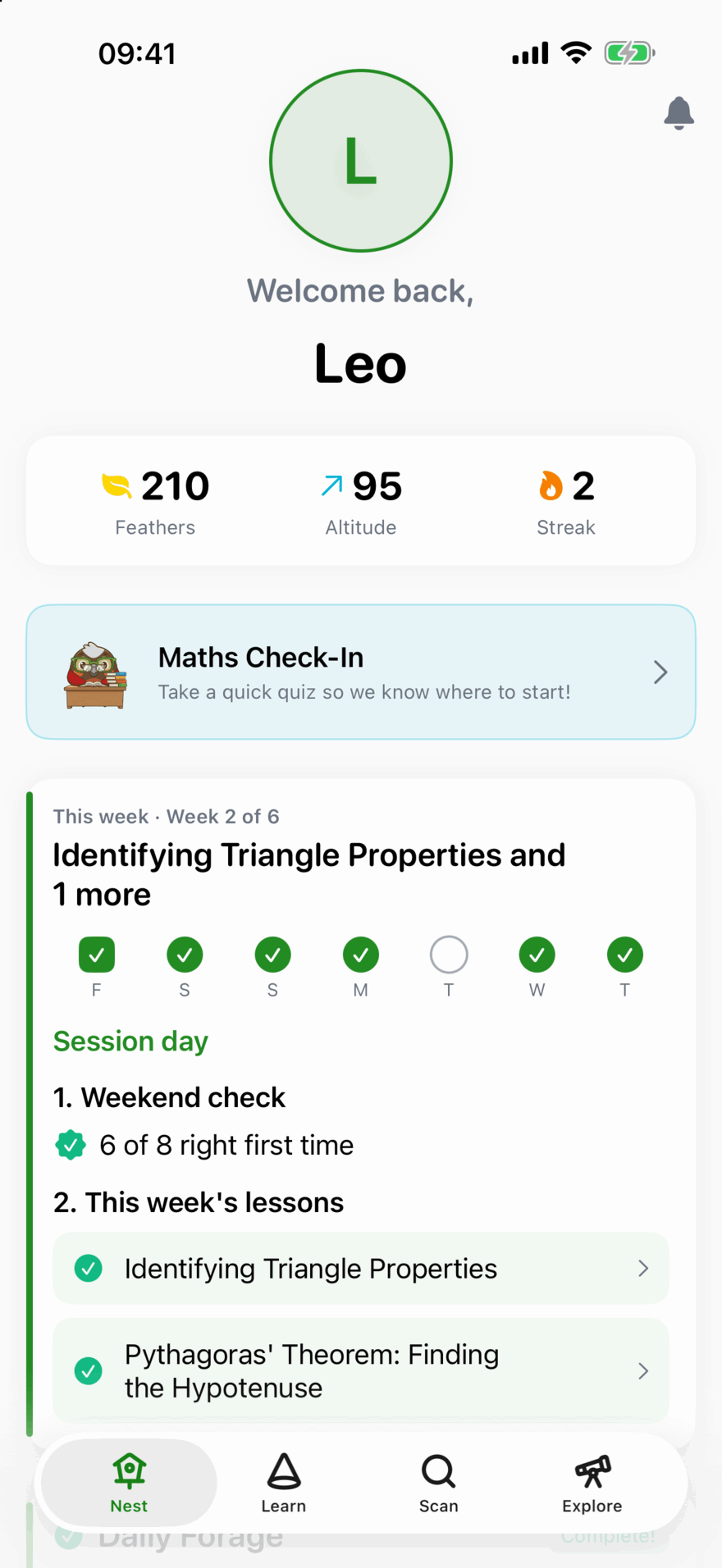
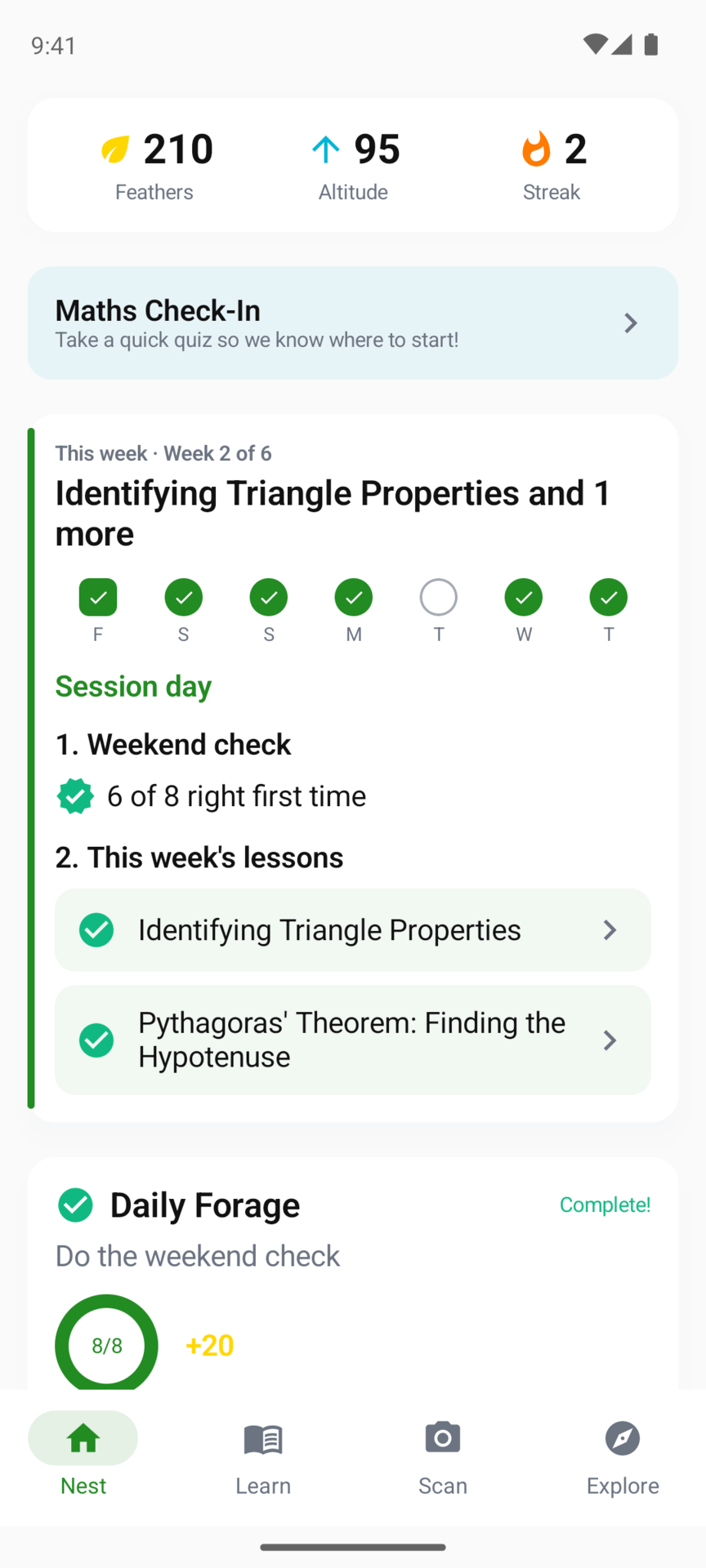
On the other days the This week card sits above your child’s Daily Forage. It reads “This week · Week 3 of 6” with the week’s title and seven dots, one for each day starting with the session day.
Today’s practice
On a practice day the card says “Today’s practice: 6 questions, about 10 minutes.” with a Start today’s practice button.
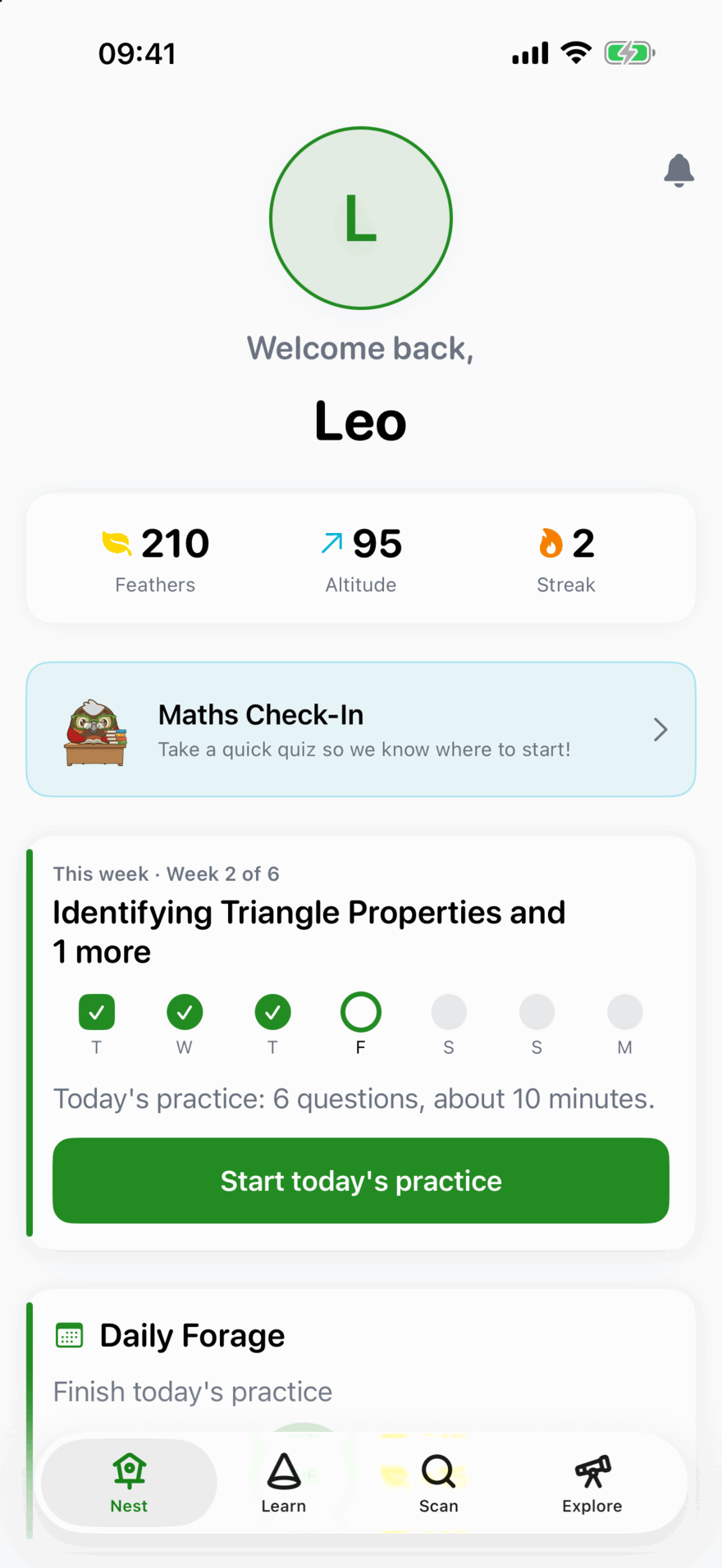
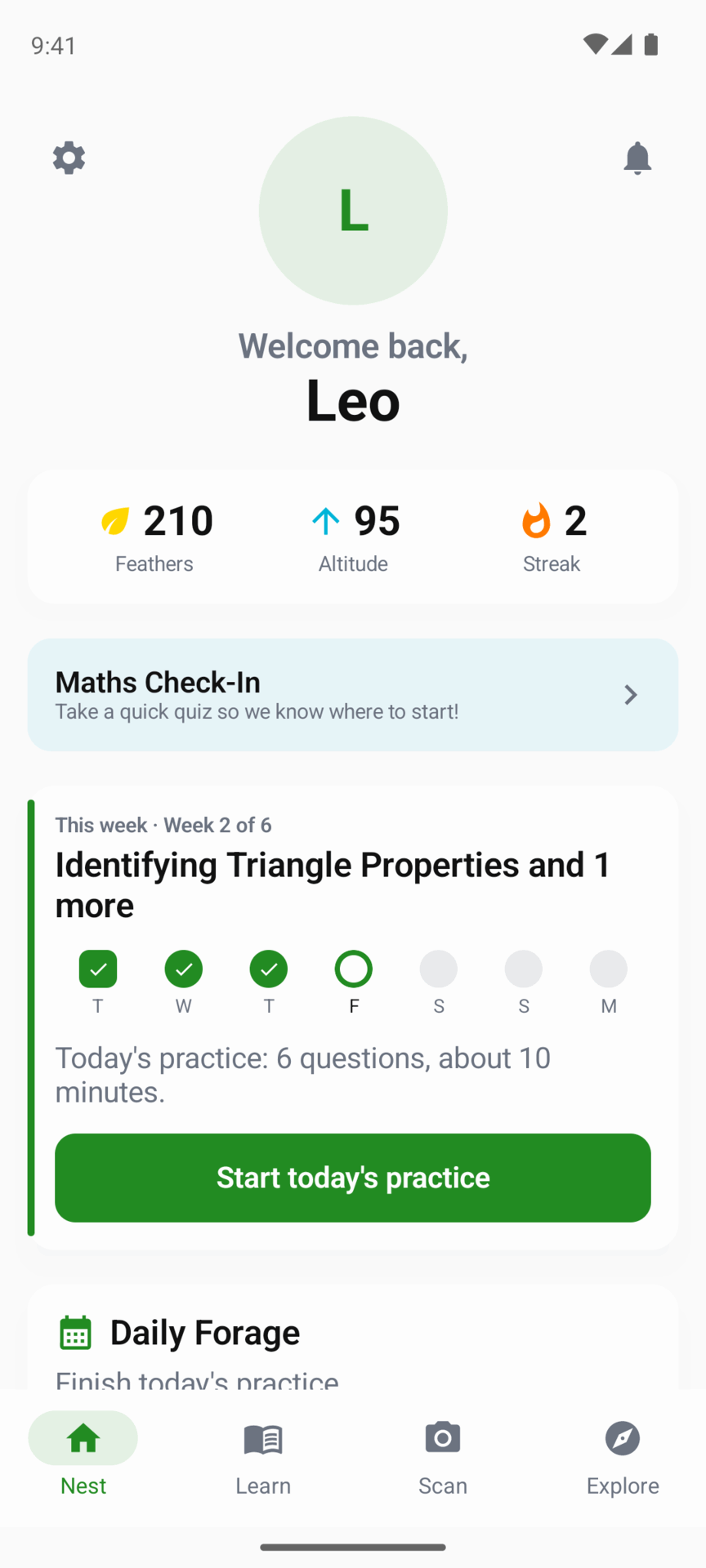
- Questions come from this week’s lessons your child has started, and get harder through the week. A lesson counts once your child has answered a question in it, even if they stopped part-way.
- From week 2, a couple come from earlier weeks, so older work is revisited.
- Questions your child got wrong at least two days ago come back before new ones.
- Questions that need a photo of written working are not used, so the set can be done on its own.
- The set is fixed for the day. Leave and come back and it is the same questions. Part-way, the card says how many are left to go with a Carry on button. When it is finished it says “Done for today. Back tomorrow.”
If your child hasn’t started any of this week’s lessons, there is no practice yet. The card says “Start a lesson and today’s practice opens.” above the lessons, and the practice appears as soon as they start one. Earlier weeks don’t stand in for it, and the day shows as missed if no lesson gets started.
If they have started one lesson and not the other, the practice comes from the one they started, and the other is listed under “Still to do”. A lesson they start today joins the practice from tomorrow, because today’s set is already fixed. A lesson stays under “Still to do” until it is finished.
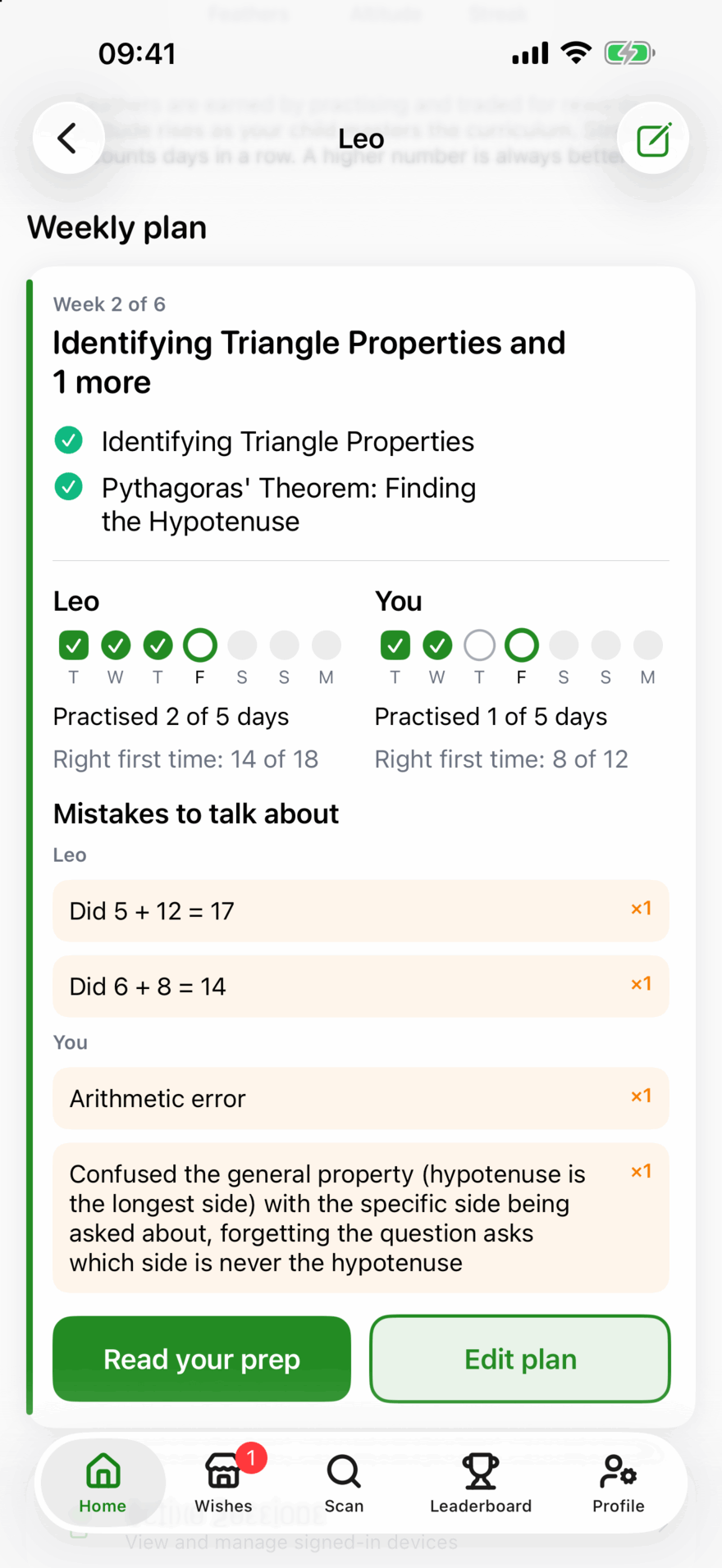
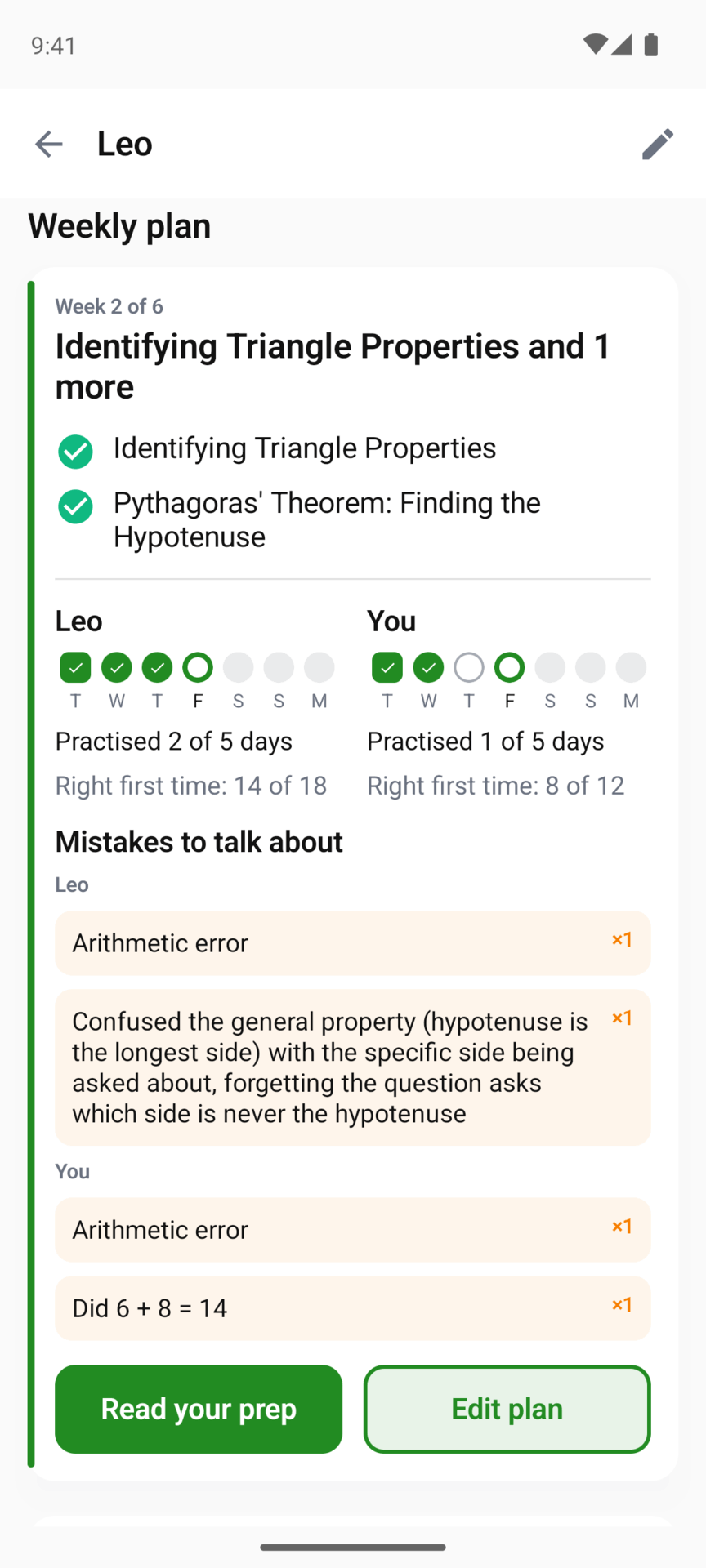
A day counts as done when every question in that day’s set has been answered. Your child’s page shows “Practised 4 of 5 days” and, for the week as a whole, “Right first time: 22 of 30”.
While a plan is running, the Quick Review card is hidden from the Nest, because today’s practice already includes the review. The Daily Forage becomes “Finish today’s practice” on a practice day once a lesson has been started, worth 15 Feathers, and “Do the weekend check” on a session day with a check to do, worth 20. See Quick Review and Daily Forage.
Your child gets a practice reminder at the time you chose in their notification settings, saying how many questions are waiting, or which lessons to start if none has been. See Notifications.
The weekend check
The weekend check is 8 questions on the lessons just practised, from the ones your child has started. It is available on the session day and the day after, from week 2 on (week 1 has nothing yet to check). If your child started none of the week’s lessons there is no check, and the card shows the lessons instead.
When it is finished your child sees “7 of 8 right first time”, a line on what it suggests, and “Your parent picks what’s next.” Tap Done to go back to the Nest.
You get a notification, “Olive’s weekend check”, with the score. Tap it to open your child’s page. It is controlled by the Weekly Summary switch in your notification settings.
The three choices
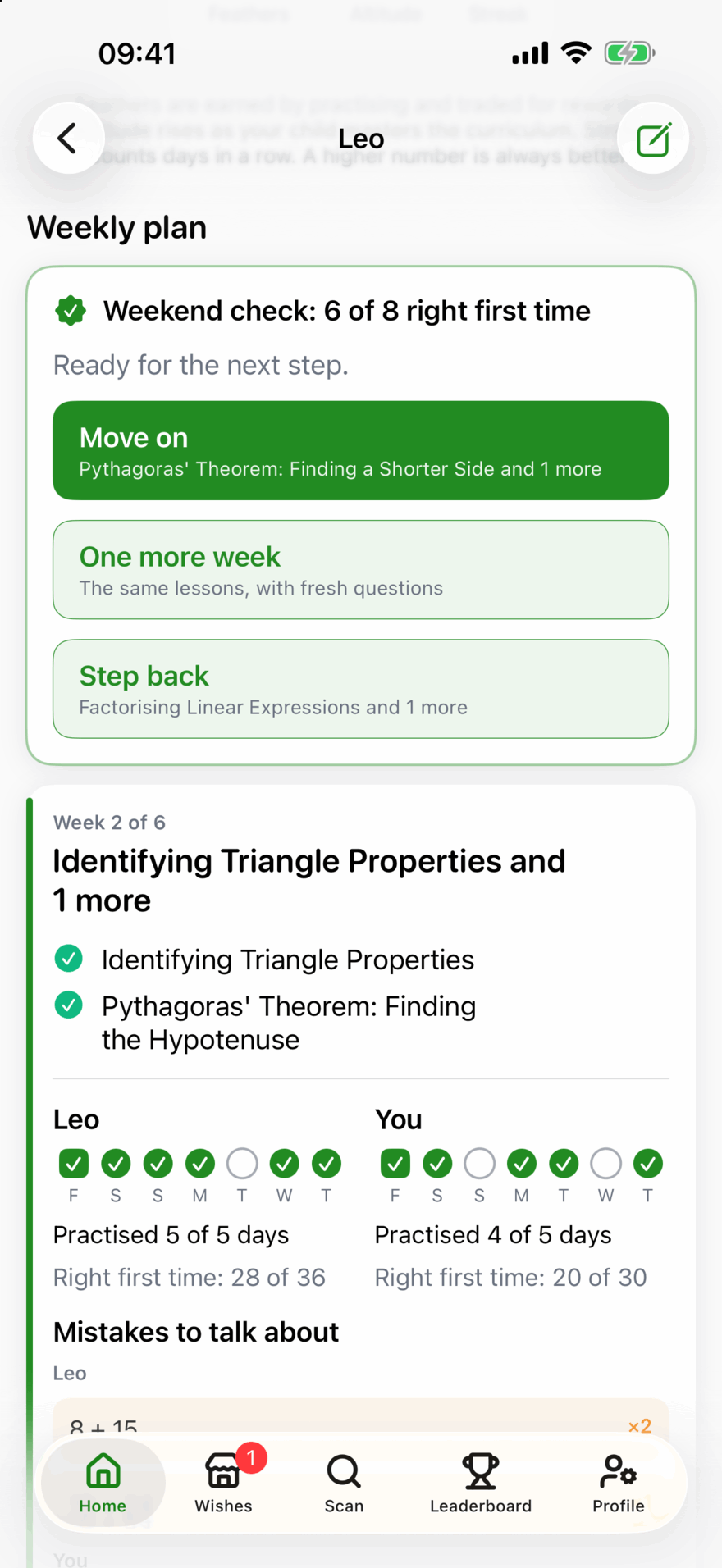
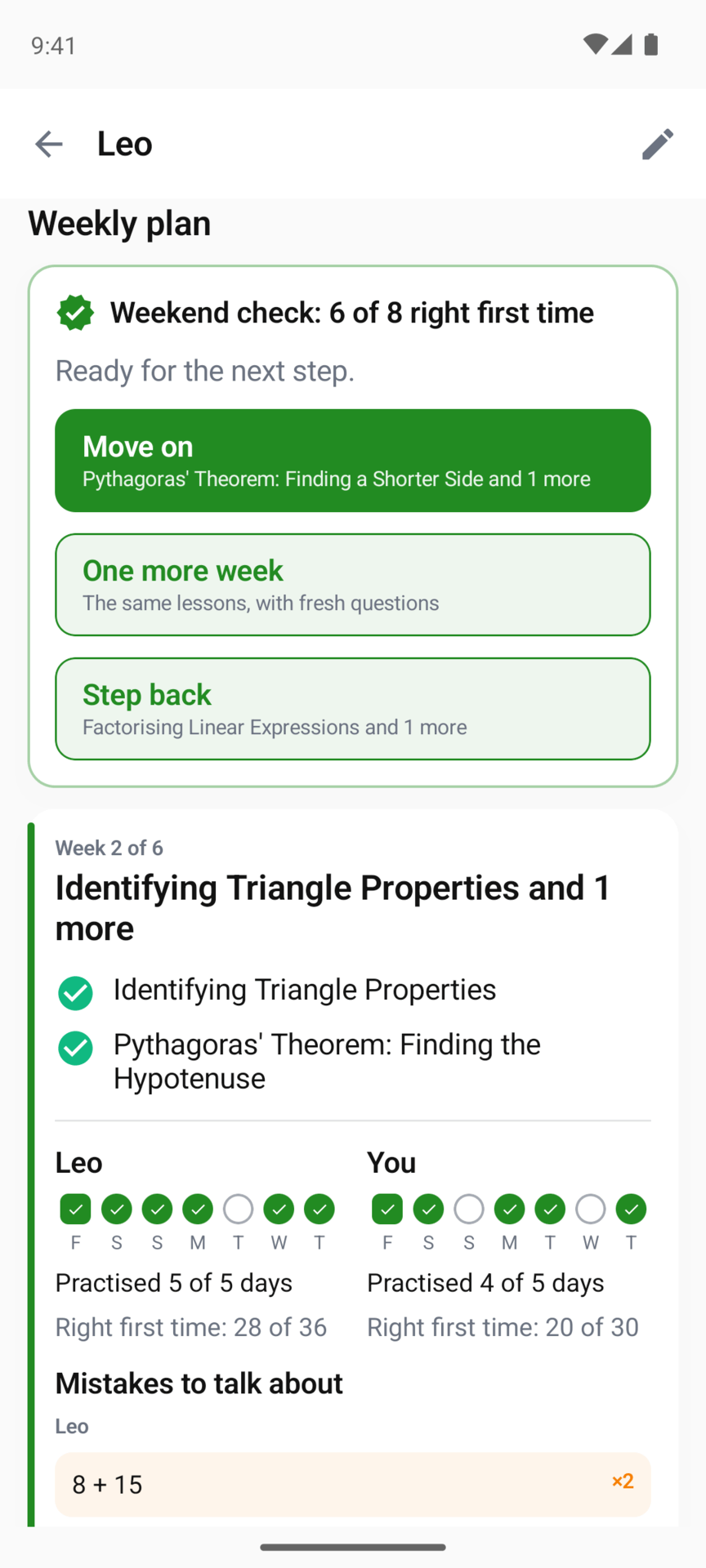
Once the check is done, or once the session day has arrived without one, your child’s page shows a card at the top of the Weekly plan section: “Weekend check: 7 of 8 right first time” (or “No weekend check this week”) and what Kākā Math suggests. Then you choose:
| Choice | What happens |
|---|---|
| Move on | The next lessons start. The next week’s title is shown underneath. On the last week this button reads Finish the plan and completes the plan. |
| One more week | The same lessons, with fresh questions. |
| Step back | Goes back to the previous week’s lessons first, then returns to this week’s. Not offered in week 1. |
The suggested choice is the filled button. A score of 6 or more suggests Move on, 4 or 5 suggests One more week, and 3 or fewer suggests Step back. With no check it uses the week’s practice instead. If your child never started one of the week’s lessons, it suggests One more week rather than Move on, because neither the practice nor the check covered that lesson. The suggestion is only a suggestion, and the decision is yours.
If nobody decides by the end of the day after the session day, Kākā Math applies its own suggestion so the plan keeps moving.
Deciding closes the weekend check, so if your child hasn’t done it yet, let them do it first.
Learning alongside
If you want to do the maths too, turn on Learn alongside when you set the plan up, or later under Edit plan. You follow the same lessons on your own profile and compare each week: “Do the same lessons on your own profile and compare each week.”
- The first time, the app asks for the year levels for your own profile. Tick one or more.
- On your home screen a card called Your learning appears. Tap Start learning to switch into your profile, the same way you switch to a child. The app asks you to set a family PIN first if you haven’t.
- Your Nest shows the same This week card, with your own practice and weekend check. To get back to your parent screens, use Back to Parent.
- Your practice uses the same questions as your child’s where it can, in the same order when the sets match, so you can compare answers. They can still differ: a question either of you got wrong comes back for that person, and a question one of you has already had is swapped for another. Your weekend checks are separate.
- Lessons count separately too. Your practice only draws on lessons you have started on your own profile, even if you sat beside your child for them, and until you have started one the card asks you to.
- Your figures appear beside your child’s, under “You”, on your child’s page and in the weekly plan email. The suggestion is always about your child. Yours never changes it.
Your learning profile is not a child. It doesn’t count towards the limit of five children or the “children” count on your home screen. It gets no practice reminders and no Wishes, and it is never on a flock leaderboard.
The Friday email and the prep page
At 6pm the evening before each session (Friday if you meet on Saturday), you get an email, “Tomorrow:” followed by the next lessons. It has:
- How the week went for your child, and for you if you are learning alongside: the days practised, how many were right first time each day, and up to two Mistakes to talk about.
- Tomorrow: “Start with the weekend check on this week’s lessons, then the new ones,” the titles of the next lessons and the start of the first one’s introduction.
- A Read your prep button, and “Or revisit this week’s lessons”.
- A tip: if your child is stuck, let them tap Hint before you explain, and Show me another way gives a second explanation.
Before the first session the email just says “Your first session.” and introduces week 1. In the last week of a plan there are no new lessons, so it has no Read your prep button, only “Revisit this week’s lessons”.
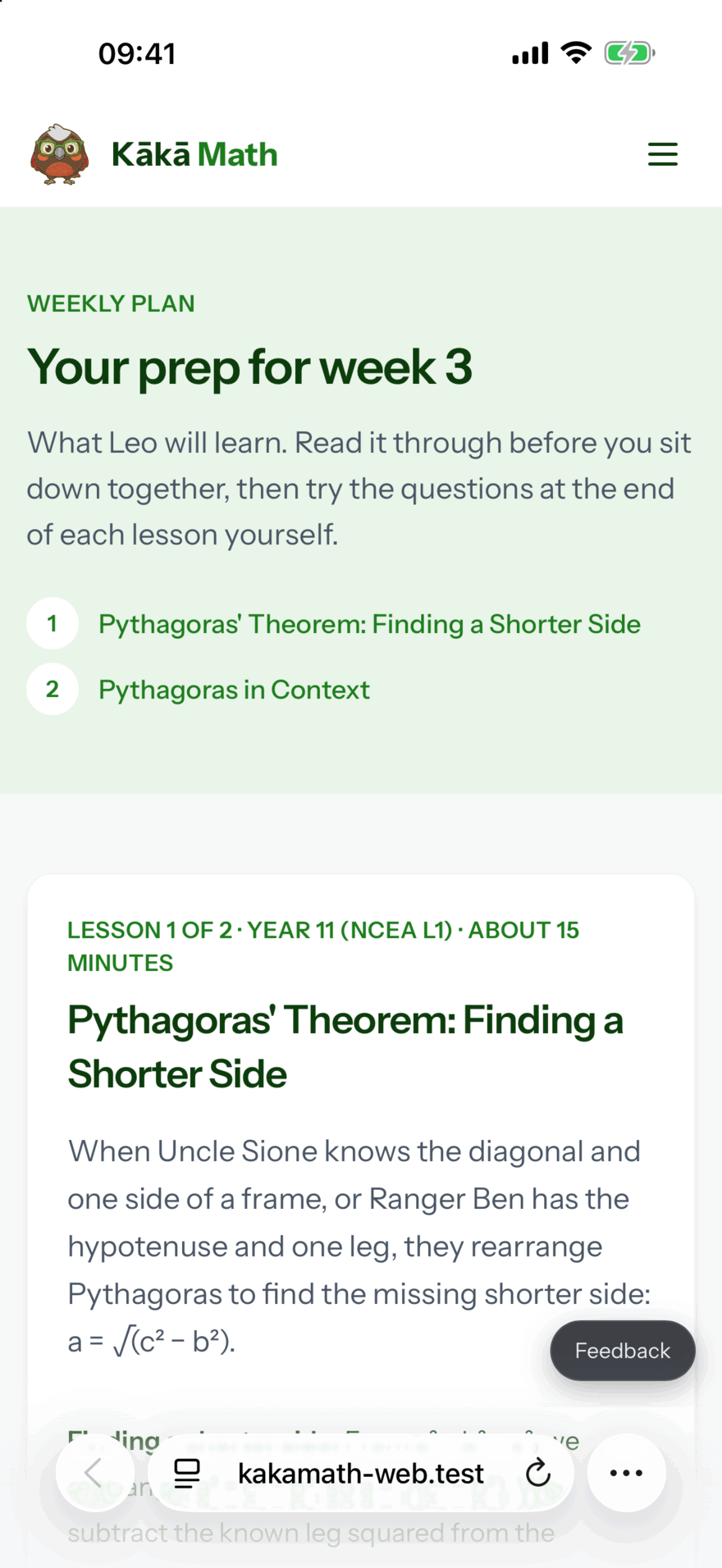
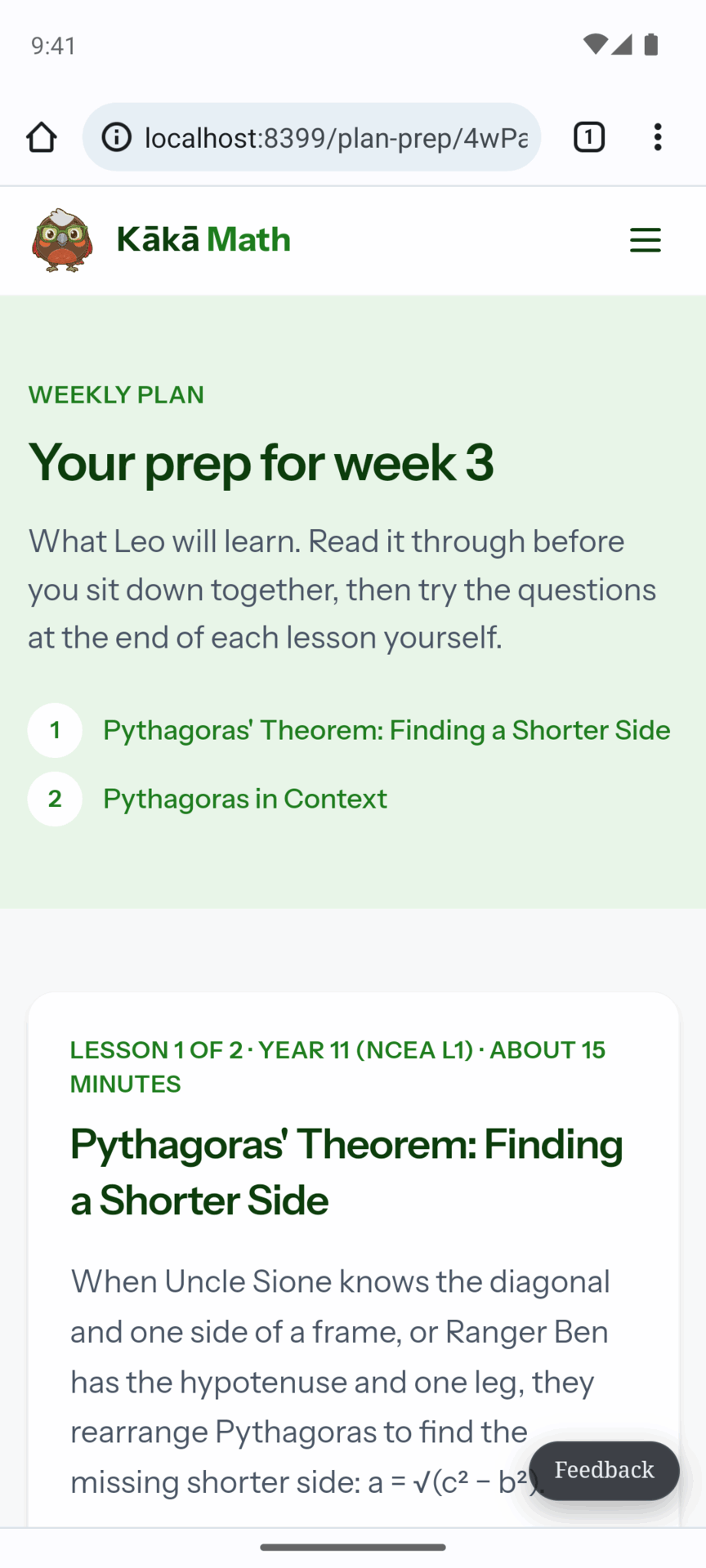
The link opens a prep page in your browser, with no sign-in. For each lesson it has the introduction and the lesson itself, a worked example, Mistakes to watch for and Try these yourself: up to three questions, each with a Show the answer button. The link lasts two weeks. After that the page says “This link has expired.” and you can open Read your prep on your child’s page for a new one. In the app, that button opens this week’s lessons.
If your child has their own email address, they get a short note too.
The plan email replaces the Monday email for a child with a plan. Children without a plan still get the Monday email. Both are switched off with the Weekly Summary switch.
Changing, pausing and ending a plan
On your child’s page, tap Edit plan. You can change the upcoming weeks (the current and finished weeks are fixed), the session day and the questions a day.
- Pause plan stops today’s practice, the weekend check, the plan’s reminders and the plan email, and hides the This week card from your child. Their Nest goes back to the usual Daily Forage, Quick Review can appear again, and they get the ordinary practice reminder. A paused child is still left out of the Monday email, so you get no weekly email for them until you resume. The section shows “Paused”. Resume plan starts again, and a week that ran out while paused is run again from the latest session day.
- End plan asks “End this plan?” and tells you “Their progress stays. The weekly emails stop.” You can then start a new plan.
Differences between iPhone and Android
The screens and wording are the same, apart from these.
- Edit plan opens as a sheet on iPhone and iPad, and as its own screen on Android.
- In set-up, Android has a close cross and a back arrow where iPhone and iPad have Cancel and Back, and the year levels for your own profile open in a small window rather than a sheet.
- First session’s Choose a day shows a date picker on the screen on iPhone and iPad, and in a small window on Android.
- Pull down on your child’s page to refresh the plan on iPhone and iPad. Android’s child page has no pull to refresh. It loads when you open it and updates after you change anything.
If something here doesn’t match what you see, contact us.
Updated . Does something here not match what you see in the app? Tell us and we will fix the page.